

12 Fixes to Speed Up Your Laptop
Learning how to speed up a slow laptop is easier than most people think, and you rarely need to buy a new machine straight away. Laptops usually slow down for ordinary reasons: too many programs starting at once, a nearly full drive, outdated software or simple digital clutter built up over years. Work through the twelve fixes below in order, starting with the free and simple ones. Most apply to both Windows and Mac, and together they can make an ageing laptop feel responsive again.
1. Restart your laptop: It sounds obvious, but a proper restart clears temporary files, frees memory and stops runaway background processes. Many people only close the lid for weeks at a time, so a full reboot is always the first fix to try.
2. Uninstall unused programs: Old games, trial software and apps you have not opened in a year still take space and sometimes run background services. Remove everything you no longer need from your system settings and restart afterwards.
3. Stop startup apps: Many programs add themselves to your startup list and launch every time you sign in. Disable the ones you do not need immediately in Task Manager on Windows or Login Items on a Mac, and your sign-in will feel much faster.
4. Free up disk space: A drive that is almost full slows everything down, because the system needs spare room to work. Delete large downloads, empty the recycle bin or trash, and move photos and videos you rarely use to an external drive or cloud storage.
5. Check for malware: Viruses and unwanted software can quietly use your processor and internet connection. Run a full scan with your built-in security tools, Windows Security on Windows or a reputable scanner on a Mac, and remove anything it finds.
6. Update your system and drivers: Updates fix bugs and performance problems as well as security holes. Install the latest Windows Update or macOS update, and keep important drivers, especially graphics drivers, up to date too.
7. Tidy your browser: Too many extensions and months of cached files make browsing feel slow even on a fast connection. Clear the cache, remove extensions you do not recognise or use, and close tabs you have finished with.
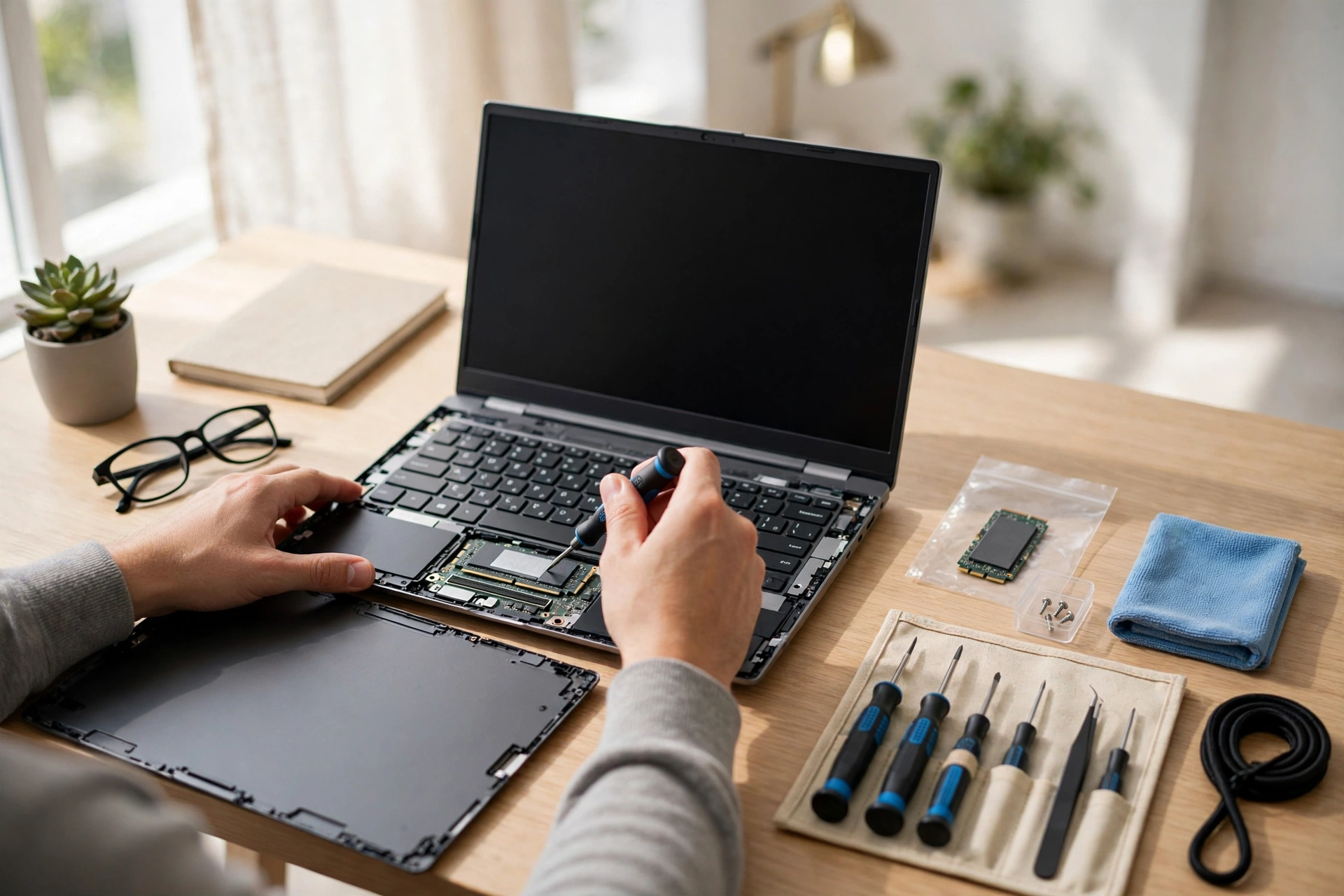
8. Add more RAM: If your laptop constantly struggles when you open several apps at once, more memory can transform it. Many models let you upgrade RAM cheaply, though some slim laptops have it fixed in place, so check before you buy.
9. Switch from a hard drive to an SSD: This is the single biggest upgrade for an older laptop. Replacing a spinning hard drive with a solid-state drive makes starting up, opening programs and copying files dramatically quicker.
10. Adjust power settings: Power-saving modes limit performance to stretch battery life. When you are plugged in, choose a balanced or high-performance plan on Windows, and on a Mac avoid relying on low-power mode when you need full speed.
11. Turn down visual effects: Animations, transparency and shadows look nice but cost performance on older hardware. Windows lets you adjust for best performance in its visual effects settings, and macOS lets you reduce transparency and motion in Accessibility settings.
12. Reset as a last resort: If nothing else works, back up everything and use the built-in reset or recovery option to reinstall the system fresh. It takes time to set things up again, but it removes years of accumulated problems in one go.
How to Speed Up a Slow Laptop on Windows and Mac
The steps above follow the same logic on both systems; only the menu names differ. On Windows, your main tools are Task Manager, Storage settings and Windows Update. On a Mac, look at Activity Monitor, Login Items and the storage management recommendations in system settings. Whichever system you use, change one or two things at a time and test the result, so you know what actually helped. With a little maintenance every few months, these habits will keep your laptop running quickly for years, and show that knowing how to speed up a slow laptop is mostly about regular housekeeping rather than expensive repairs.
